
Your laptop is one of the most important tools you use every day. Whether you're working, attending online classes, gaming, editing videos, or simply browsing the internet, it helps you stay productive and connected.
Like any device, your laptop needs regular care to stay fast and reliable. If you ignore basic maintenance, it can slow down, overheat, lose battery life, or develop problems that cost more to fix later.
The good news is that keeping your laptop in good condition doesn't have to be complicated. A few simple habits can go a long way in maintaining its speed, reliability, and overall lifespan.
Here's a practical maintenance checklist every user should follow to help extend the life of their device and enjoy smoother performance.
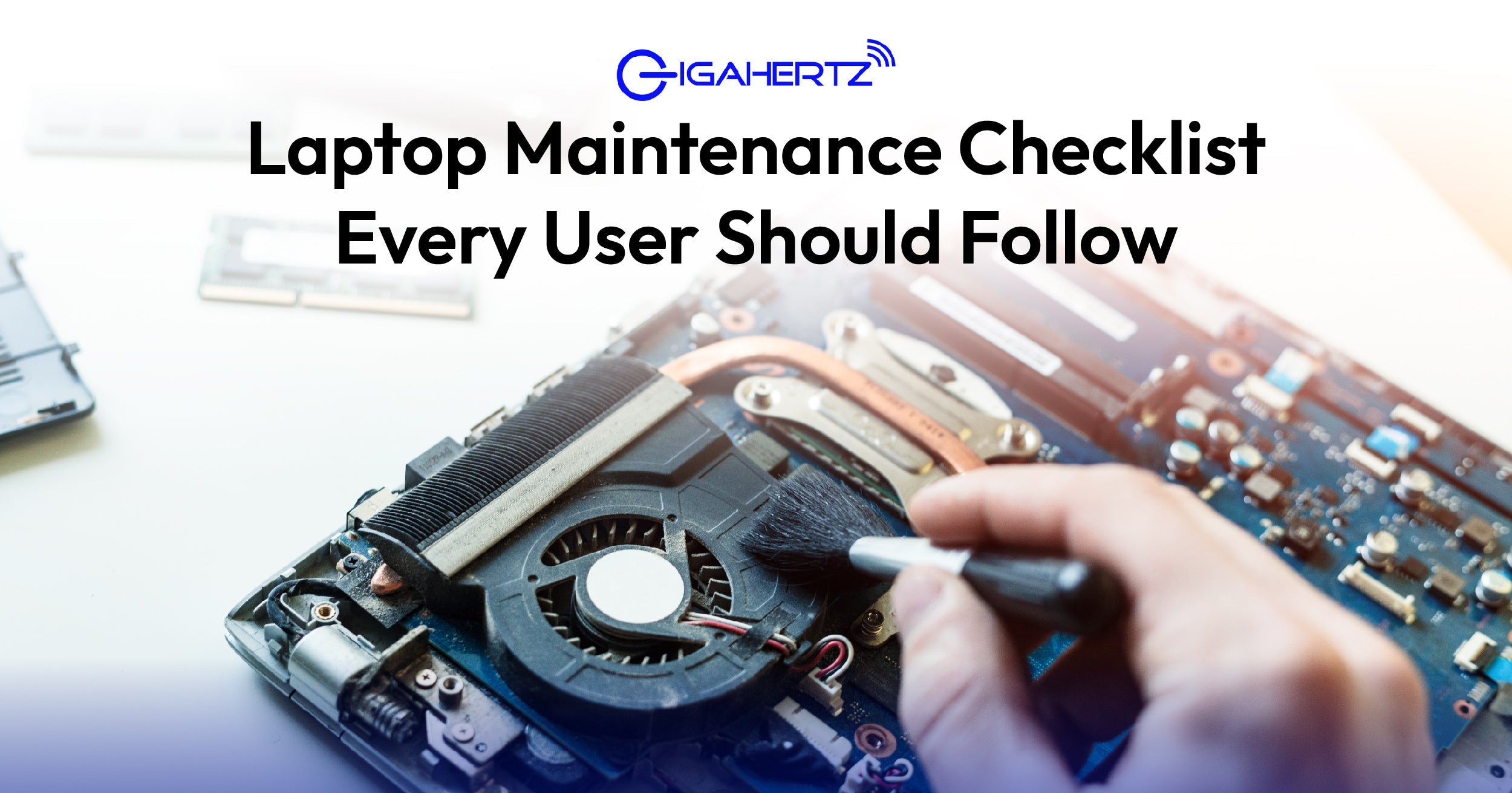
1. Keep Your Laptop Clean Dust is one of the biggest enemies of any gadget. While it may seem harmless, tiny particles can build up inside your laptop over time and block the cooling vents and fans. When this happens, your laptop has to work harder to stay cool, which may cause it to slow down or become uncomfortably hot during demanding tasks.
Cleaning the outside of your laptop is just as important as maintaining its internal components. Wipe the display gently using a microfiber cloth, as it removes fingerprints and dust without scratching the screen. The keyboard should also be cleaned regularly because dust, hair, and crumbs can easily collect between the keys.
Using compressed air to clear the cooling vents helps improve airflow, especially if you use your laptop every day. It's also a good habit to avoid eating or drinking near your device since accidental spills can permanently damage the keyboard and internal hardware.
Keeping your laptop clean not only makes it look newer but also helps it maintain proper airflow, allowing the processor and other components to perform efficiently for a longer period.
2. Update Your Operating System Many people postpone software updates because they think they're only getting new features. In reality, operating system updates play a much bigger role in keeping your laptop secure and running smoothly.
These updates often include security patches that protect your device against newly discovered cyber threats. They also fix software bugs, improve experience with newer applications, and optimize overall system performance. Ignoring updates for several months can leave your laptop vulnerable to malware and other security risks while also causing certain programs to behave in an unusual way.
To make maintenance easier, enable automatic updates whenever possible. This ensures your laptop receives important improvements without requiring constant manual checks. Spending a few minutes installing updates today can prevent much bigger problems in the future.
3. Keep Drivers Up to Date If you own a gaming laptop or use your device for creative work such as video editing, 3D rendering, or graphic design, keeping your drivers updated is especially important.
Drivers act as the communication bridge between your operating system and your hardware. Your graphics card, Wi-Fi adapter, Bluetooth module, audio system, and other components all rely on drivers to function correctly. Outdated drivers can sometimes lead to poor gaming performance, unexpected crashes, slower rendering times, or connection issues.
For gamers with NVIDIA GeForce RTX graphics cards, installing the latest GeForce drivers can unlock performance improvements and game optimizations for newly released titles. Likewise, professionals who use editing software may notice better stability and connection after updating their graphics drivers.
Fortunately, most laptop manufacturers provide dedicated applications that automatically notify users whenever new driver updates become available, making the entire process quick and hassle-free.
4. Organize Your Storage Storage management is often overlooked until a laptop starts showing warning messages that the drive is almost full. Whether you're using an SSD or a traditional hard drive, leaving very little free storage space can affect your laptop's responsiveness.
As your storage fills up, temporary files, downloads, duplicate photos, and unused applications continue to occupy valuable space. Taking a few minutes each month to remove unnecessary files can help your laptop run more efficiently. Large videos and photos can be transferred to an external SSD or hard drive, while cloud storage services provide another convenient way to free up local storage.
Experts generally recommend keeping at least 15 to 20 percent of your storage available. This gives your operating system enough room to manage temporary files efficiently and helps maintain consistent performance over time.
5. Protect Your Battery Your laptop's battery is designed to last for several years, but its lifespan depends heavily on how you use and charge it.
Allowing your battery to drain completely on a regular basis can contribute to faster wear. Likewise, exposing your laptop to excessive heat while charging may reduce battery health over time. If your laptop includes battery protection or smart charging features, enabling them can help preserve long-term battery capacity by limiting the maximum charge level when necessary.
Modern laptops from brands such as ASUS, Acer, Lenovo, and HP often include battery management software that automatically optimizes charging based on your usage habits. Taking advantage of these built-in features helps maximize battery longevity while ensuring your laptop remains reliable for years to come.
6. Keep It Cool Heat is one of the leading causes of reduced performance and shorter hardware lifespans. When your laptop becomes too hot, the processor and graphics card automatically reduce their performance to prevent damage, a process known as thermal throttling.
To minimize heat buildup, always place your laptop on a hard, flat surface where air can circulate freely underneath the device. Using your laptop on soft surfaces such as beds, couches, or pillows blocks the cooling vents and traps heat inside the system. If you frequently play games, edit videos, or perform other resource-intensive tasks, investing in a quality cooling pad can further improve airflow and help maintain stable temperatures.
Keeping your laptop cool allows its internal components to perform at their full potential while also reducing long-term wear caused by excessive heat.
7. Scan for Viruses and Malware Cybersecurity is an essential part of laptop maintenance. Even a high-performance laptop can slow down significantly if it becomes infected with malware or viruses.
Malicious software can consume system resources in the background, steal sensitive information, corrupt files, or even lock users out of their own data. Installing trusted antivirus software and scheduling regular system scans provides an additional layer of protection against these threats.
It's equally important to practice safe browsing habits. Avoid downloading files from suspicious websites, be cautious when opening email attachments from unknown senders, and only install software from trusted sources. Combining smart online habits with reliable security software helps keep your laptop protected while maintaining its overall performance.
8. Back Up Your Important Files Imagine losing years of family photos, work presentations, business documents, or school projects because your laptop suddenly stopped working. While hardware failures are uncommon, they can happen without warning.
Creating regular backups ensures that your important files remain safe regardless of what happens to your laptop. External SSDs and hard drives provide fast and reliable backup options, while cloud storage services make it easy to access your files from multiple devices.
Many IT professionals recommend following the 3-2-1 backup strategy. This means keeping three copies of your important files, storing them on two different types of storage devices, and maintaining one copy in an off-site location or cloud storage. Although this approach may seem excessive, it offers excellent protection against accidental deletion, hardware failure, and ransomware attacks.
9. Restart Your Laptop Regularly Many users simply close the lid when they're done working instead of fully restarting their laptop. While sleep mode is convenient, your system still continues running in the background for extended periods.
Restarting your laptop clears temporary memory, closes unnecessary background applications, installs pending updates, and refreshes system processes. As a result, you may notice faster startup times and smoother overall performance after a restart.
Making it a habit to restart your laptop every few days is a simple maintenance practice that takes only a few minutes but can improve stability and responsiveness over time.
10. Upgrade When Needed Even with proper maintenance, every laptop eventually reaches a point where its hardware struggles to keep up with modern software requirements. Fortunately, that doesn't always mean you need to buy an entirely new device.
Many laptops allow users to upgrade components such as RAM or SSD storage. Adding more memory can significantly improve multitasking, while upgrading to a larger SSD provides additional storage space and faster file access. External accessories such as monitors, docking stations, keyboards, and wireless mice can also improve productivity without replacing your entire setup.
However, if your laptop is several years old and no longer meets your needs despite upgrades, investing in a newer model may be the better long-term solution. Modern laptops offer faster processors, improved battery life, AI-powered features, better displays, and stronger security compared to older generations.
Build a Monthly Maintenance Routine Laptop maintenance doesn't have to be time-consuming. Setting aside just 20 to 30 minutes each month to clean your device, install updates, organize storage, scan for malware, and back up important files can make a noticeable difference in its performance and longevity.
Developing a consistent maintenance routine is much easier than dealing with expensive repairs or unexpected data loss. Think of it as preventive care that helps your laptop continue performing at its best every single day.
Keep Your Laptop Performing at Its Best with GigaHertz Regular maintenance is one of the easiest ways to protect your investment and get the most out of your laptop. Whether you're a student, a working professional, a gamer, or a content creator, taking care of your device today can help you avoid costly repairs and enjoy reliable performance for years to come.
For users who want professional assistance, GigaHertz is an Authorized Service Center for Acer, ASUS, and Lenovo laptops. Our trained technicians provide cleaning, diagnostics, maintenance, and repair services using genuine parts and manufacturer-approved procedures. Whether your laptop needs a routine health check, internal cleaning, battery replacement, or hardware repair, you can trust our service team to help restore your device to optimal condition.
Beyond after-sales support, GigaHertz also offers a wide selection of genuine laptop accessories, external SSDs, memory upgrades, cooling pads, docking stations, monitors, and the latest laptops from leading brands. Whether you're maintaining your current device or planning your next upgrade, you'll find reliable products backed by expert advice.
Visit your nearest GigaHertz branch or browse our online store to discover everything you need to keep your laptop performing at its best.